

Video sections
Add Video carousel, Video reels or Video feature to a page, and set each one up in a few steps.
Three video sections, under Video and images in the section list. All videos start muted.
| Section | What it's for |
|---|---|
| Video carousel | Short clips of pieces being worn, each with its product and a bag button |
| Video reels | Rows of video cards in tabs, opening full screen with sound |
| Video feature | One video shown large, with a heading |
New to the editor? See How the editor is organized. Upload videos in Content > Files (opens Shopify admin in a new tab), or straight from the video setting.
Do it with Sidekick
Open Sidekick in the theme editor and paste this, with your own names. Check the preview, then click Save.
Add a Video reels section to the home page with Tab blocks labeled "Rings" and "Earrings". Turn on Fill empty tabs automatically and choose the collection "All jewelry".
Video carousel#
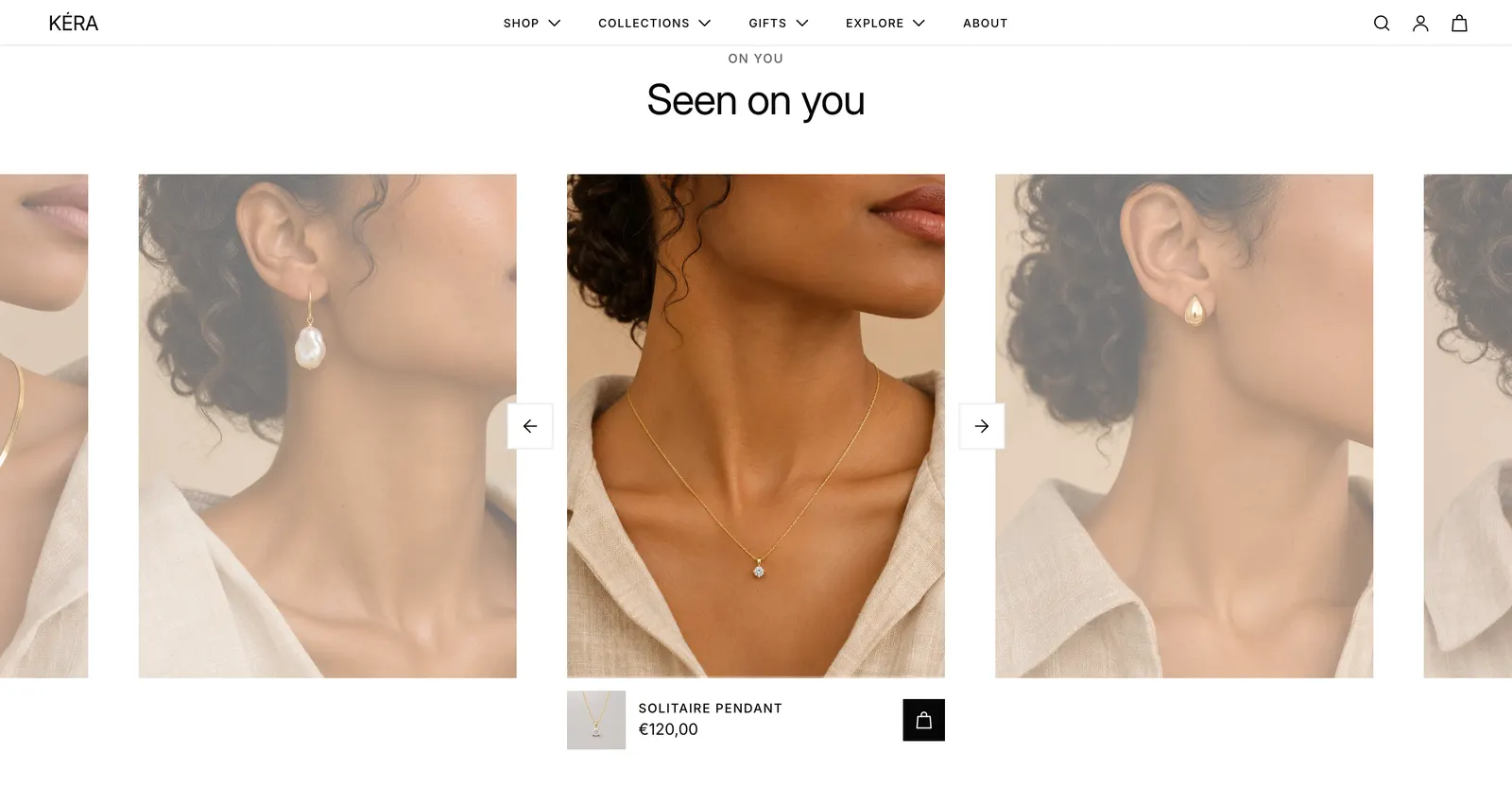
One clip in the middle with its neighbors to the sides, each with its product and a bag button underneath.
- Add a Video carousel section. It starts with 5 Video blocks.
- In each block, choose a Video. Short, portrait clips work best.
- Choose the Product shown under the clip.
- For more clips, click Add block > Video. Up to 10.
Video carousel settings
| Setting | What it does |
|---|---|
| Autoplay | Plays muted and moves to the next clip when one ends. |
| Seconds per image | 3 to 12. How long a block without a video stays. |
| Product button | Add to bag or View product. With Add to bag, products with options open a quick view. |
| Image | On a block: shown when there is no video. |
A sold-out product shows an arrow to the product page instead of the bag button. Every setting: Video carousel reference
Video reels#
Rows of portrait video cards in tabs. Tapping a card opens the section's clips full screen, with sound.
- Add a Video reels section. It starts with three tabs and two Video card blocks under each of the last two.
- In each Video card, choose a Video and its Product.
- For a tab, click Add block > Tab and set its Label. Cards below a tab block belong to that tab.
- Drag cards under the right tab. Up to 50 blocks in all.
Video reels settings
| Setting | What it does |
|---|---|
| Fill empty tabs automatically | A tab without cards shows products from Collection whose title, type or tags contain the tab's name as a whole word. |
| Cards per tab | 2 to 8. How many cards a tab fills itself with. |
| Card width on phones | 60 to 90% of the screen. |
| Show videos from every tab | On a tab: for an "All" tab. |
| Focus | On a card: the part of the clip kept in view. |
With no tab blocks, all cards show in one row. Every setting: Video reels reference
Video feature#
One video with an eyebrow and a heading. It plays while in view and pauses when scrolled away.
- Add a Video feature section.
- Choose a Video. Optional: set a Mobile video, such as a portrait cut.
- Choose a Height. Turn on Full width to run the video edge to edge.
Video feature settings
| Setting | What it does |
|---|---|
| Play automatically | Off shows the preview image with a play button, and the video loads only when pressed. |
| Height | Medium or Large. |
| Full width | Runs the video edge to edge. As the first section, with Top spacing set to None, it can sit under a transparent header. |
Visitors who prefer reduced motion see only the preview image. Every setting: Video feature reference