

Newsletter, popup and reviews
Collect email sign-ups with a newsletter band or popup, show customer quotes, and add an image grid that links to your social profile.
Four sections that collect signups or show what customers say. Signups need no app: each becomes a customer in Customers, tagged newsletter and subscribed to email marketing.
| Section | What it's for |
|---|---|
| Newsletter | An email sign-up band on any page or in the footer |
| Newsletter popup | A sign-up popup that opens after a delay or on scroll |
| Testimonials | Customer quotes, one at a time |
| Image grid | A row of square images that link to your posts or products |
New to the editor? See How the editor is organized.
Do it with Sidekick
Open Sidekick in the theme editor and paste this, with your own words. Check the preview, then click Save.
Add a Testimonials section to the home page above the footer, with three Testimonial blocks. Use these quotes and names: "I never take it off", Anna; "Light enough to sleep in", Maya; "The perfect gift", Lea.
Newsletter#
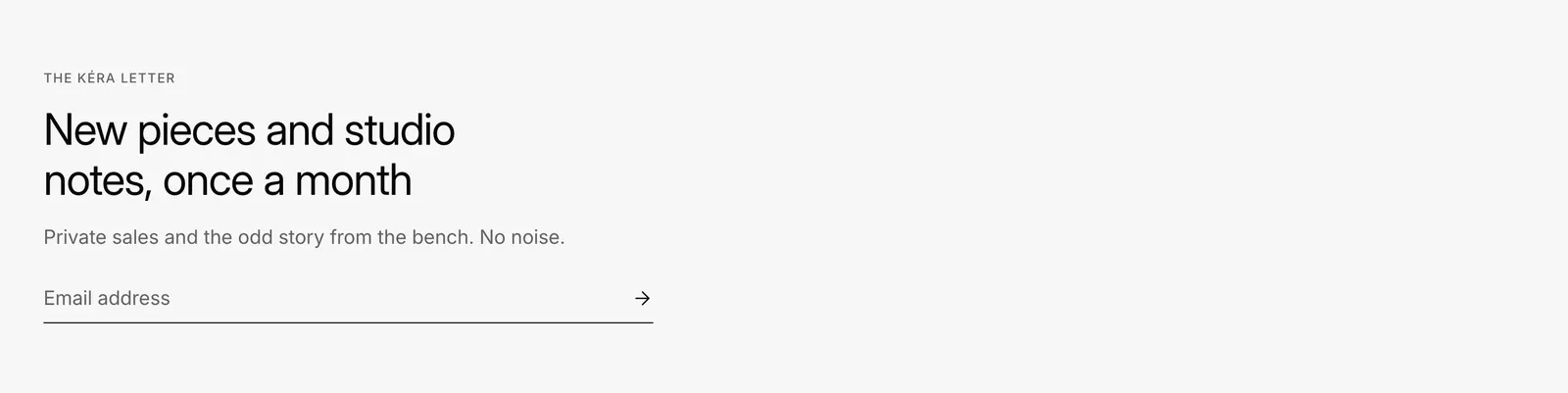
An email field with an eyebrow, heading and text. After signing up, the field is replaced by a thank-you line.
- Add a Newsletter section. It's under Utilities and layout.
- Set the Text, for example what subscribers get.
Newsletter settings
| Setting | What it does |
|---|---|
| Text | A line under the heading. |
It goes in any template and in the footer group. The blog template includes one. The footer also has its own Newsletter block: see Footer. Every setting: Newsletter reference
Newsletter popup#
A popup with an optional image and a sign-up form. Installs on, showing on the home page.
- In the sidebar, under Overlays, click Newsletter popup. The preview opens the popup.
- Set Show on, Show after and After closing, show again after.
- Choose an Image and fill in the sign-up form.
- Fill in the message shown After signing up.
Newsletter popup settings
| Setting | What it does |
|---|---|
| Show on | Home page only or All pages. |
| Show after | 0 to 60 seconds. |
| Also show halfway down the page | Opens at halfway down if that comes first. |
| After closing, show again after | 1 to 90 days. Visitors who sign up don't see it again. |
| Show teaser after closing | A small button in a bottom corner that opens the popup again. |
It never opens for signed-up visitors or while another overlay, such as the bag, is open. Every setting: Newsletter popup reference
Testimonials#
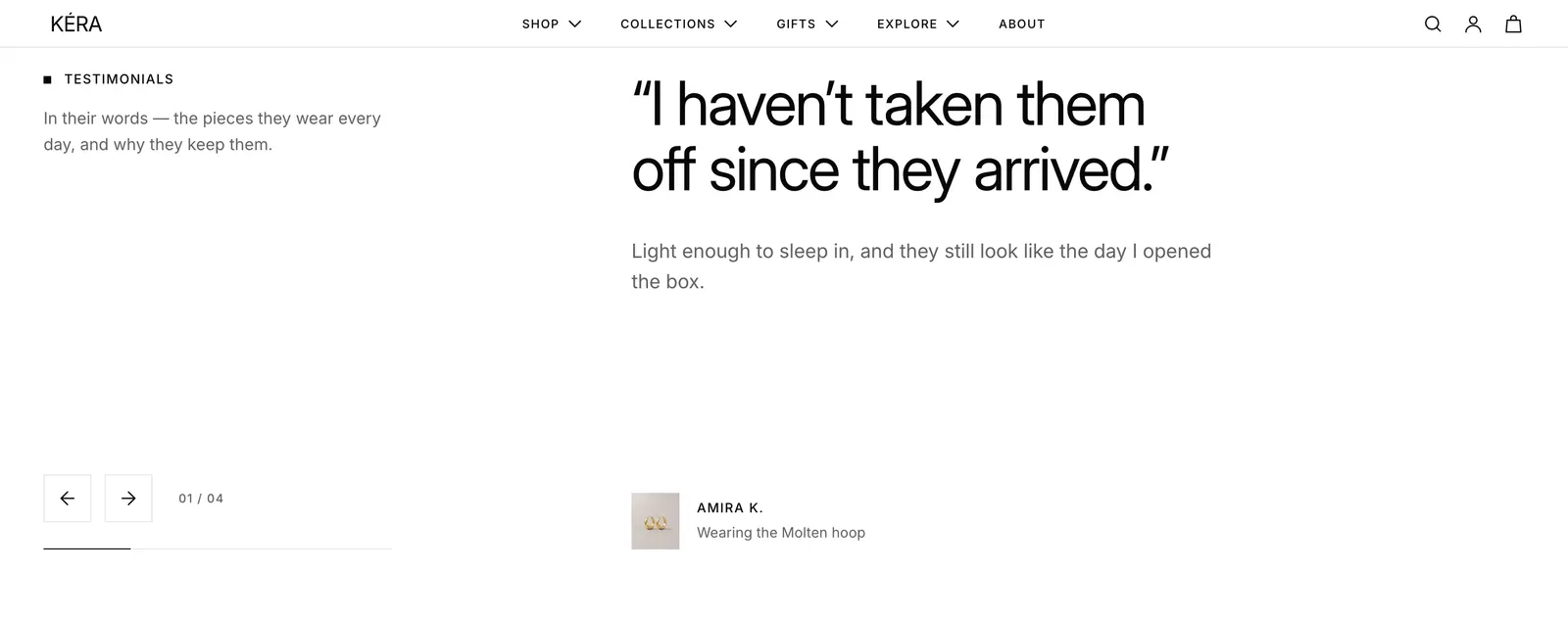
Customer quotes you type in, one at a time, changed with arrows or a swipe.
- Add a Testimonials section. It starts with 3 Testimonial blocks.
- In each block, replace the sample Quote, Text and Name.
- Optional: choose the Product the customer wears.
- For more quotes, click Add block > Testimonial. Up to 12.
Testimonials settings
| Setting | What it does |
|---|---|
| Intro | A line of text under the heading. |
| Show rating | Shows each testimonial's Rating, 0 to 5 stars. |
| Quote | On a block: quotation marks are added for you. |
| Product | On a block: shows the product's image and name, linking to it. |
| Detail | On a block: for example the city. Shown when no product is chosen. |
Reviews from a reviews app need the app's own block, not this section. Their star ratings show on product cards and in the Rating block: see below. Every setting: Testimonials reference
Star ratings from a reviews app#
Kera shows star ratings from your reviews app on product cards and on the product page. Judge.me, Loox, Okendo, Yotpo, Stamped and most other reviews apps keep Shopify's standard rating and review count up to date for each product, and the theme reads those. Nothing shows on products without reviews.
- Install your reviews app and let it sync your reviews.
- Product cards: in Theme settings > Product cards, Show star rating installs on. Stars and the count, such as
(21), show under the price. - Product page: open a product template, select Product information, click Add block > Rating, and drag it under the title.
- To show the reviews themselves, add the app's reviews block, for example in an Apps section below the product.
Rating block settings
| Setting | What it does |
|---|---|
| Show review count | Shows the number of reviews after the stars. Installs on. |
When the page has the reviews app's widget, clicking the stars scrolls down to it. Without one, the stars are plain text. On a product without reviews the block shows nothing; in the theme editor it shows a short note instead.
Good to know about star ratings
- A rating out of 10 or another scale shows out of 5 stars. Partial stars show the exact rating, so 4.7 fills most of the fifth star.
- Screen readers hear the rating as a sentence, such as "4.7 out of 5 stars, 21 reviews".
- The rating and review count are also added to the product's structured data for search engines.
- An Apps section whose app shows nothing for a product, such as a reviews widget with no reviews yet, leaves no empty space.
Image grid#
A row of square images you upload, each linking to a post or product, under your handle. It doesn't connect to a social network.
- Add an Image grid section. It's under Video and images and starts with 6 Image blocks.
- Set the Handle, such as your Instagram name, and the Profile link.
- In each block, choose an Image and set its Link. Up to 12.
Image grid settings
| Setting | What it does |
|---|---|
| Handle | Shown as the heading. Empty shows none. |
| Profile link | Makes the handle a link, opened in a new tab. |
| Columns on desktop | 4 or 6. Phones and tablets show 3. |
| Full width | Runs the images edge to edge. |
| Caption | On a block: shown on hover, and always on touch screens. |
Use square images; others are cropped. For full rows, add a multiple of the columns. Every setting: Image grid reference
Good to know#
Where do I find people who signed up?
In Customers. Filter by the tag newsletter or by email subscription status. To send emails, use Shopify Email or another email app.