

Build a set and its discount
Add the Build a set section and create the matching automatic discount so a complete set is charged at the price the section shows.
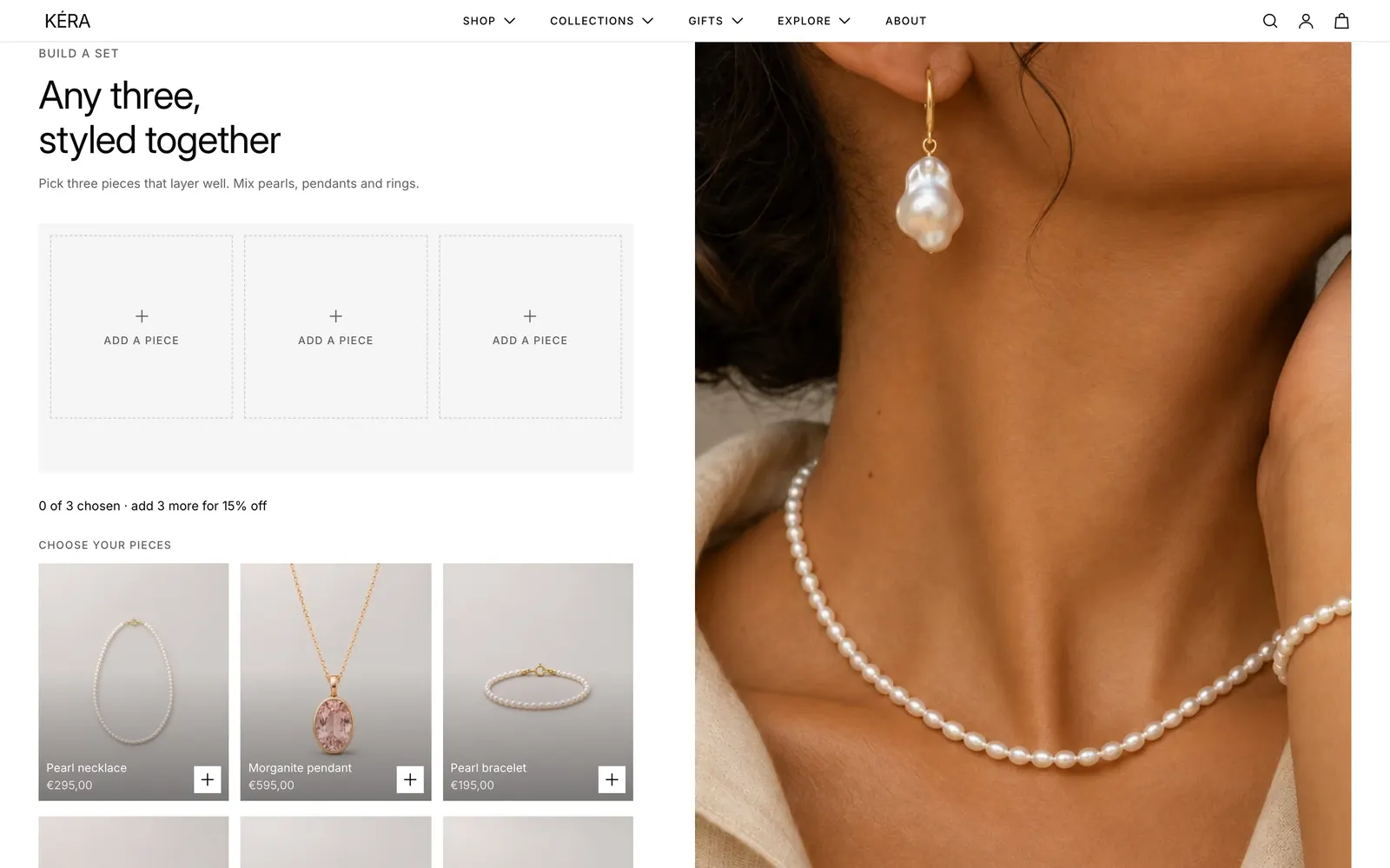
Shoppers fill a row of slots from a grid of pieces, then add the whole set to the bag in one tap. The section can show a set discount, for example "Set complete · 15% off at checkout".
Set it up#
- Add the Build a set section and upload the Image.
- Pick up to 12 pieces in Products, or choose a Collection (used only when no products are picked; its first 12 show).
- Set Pieces in a set, from 2 to 5 (default 3).
- Leave Set discount at 0% until the discount below exists.
Create the discount#
- In Shopify admin, go to Discounts > Create discount > Amount off products.
- Choose Automatic discount, a title such as "Set of 3", and a Percentage, for example 15.
- Under Applies to, choose the same products or collection as the section.
- Under Minimum purchase requirements, choose Minimum quantity of items and enter Pieces in a set. Save.
- In the editor, set Set discount to the same percentage.
Do it with Sidekick
Open Sidekick in the Shopify admin and paste this, with your own names and numbers. Check what it fills in before you save.
Create an automatic "Amount off products" discount called "Set of 3": 15% off products in the Stacking rings collection, when the cart has at least 3 of those products.
Settings#
Section settings
| Setting | What it does |
|---|---|
| Color scheme | Colors of the section. Default scheme 1. |
| Image | The photo beside the builder. |
| Image position | Left (default) or Right. |
| Eyebrow | Small text above the heading. Default "Build a set". |
| Heading | The section heading. Line breaks are kept. |
| Heading size | Extra large, Large, Medium (default), Small or Extra small. |
| Text | A paragraph under the heading. |
| Products | The pieces to choose from, up to 12. |
| Collection | Used when no products are chosen. Shows its first 12 products. |
| Pieces in a set | The number of slots. 2 to 5, default 3. |
| Pieces per row on desktop | 3 (default) or 4. |
| Allow variant selection | Pieces with options open the quick view to pick one. Installs off. |
| Set discount | The percentage shown for a complete set. 0 to 50%, default 0. Display only. |
| Top spacing | None (default), Small, Medium or Large. |
| Bottom spacing | None (default), Small, Medium or Large. |
The tiles follow Theme settings > Product cards for card style, image ratio and text alignment.
Every setting: Build a set reference.
Good to know#
How do shoppers build a set?
A tap fills the next slot; tapping the piece or slot again takes it out. With every slot full, a tap swaps out the first piece chosen. A status line counts, for example "2 of 3 chosen · add 1 more for 15% off". On phones, a complete set keeps a copy of the add button at the bottom of the screen.
How is the total shown?
For a complete set with Set discount above 0%, the total drops by that percentage, with the full price crossed out and a "You save" line. Shoppers can also add fewer pieces, without the discount line. The bag then follows After adding to the bag (Cart drawer and cart page).
Which variant goes in the bag?
Its cheapest available variant, the price on its tile. With Allow variant selection on, a piece with variants opens the quick view to pick one, and can fill two slots in two variants. This needs the Quick view section in Overlays.
Does the discount only apply to sets built here?
No. Shopify applies it to any bag that meets its rules, including pieces added one by one. If that isn't what you want, keep Set discount at 0% and skip the discount.
The section shows a discount, but the bag charges full price.
Check the discount is active, Automatic discount, applies to the same Specific products or Specific collections, and has a minimum quantity of Pieces in a set. Test a full set in your store's preview.