

Set up search and predictive search
Choose what search looks through, set up the search panel's popular searches and products, and the search results page.
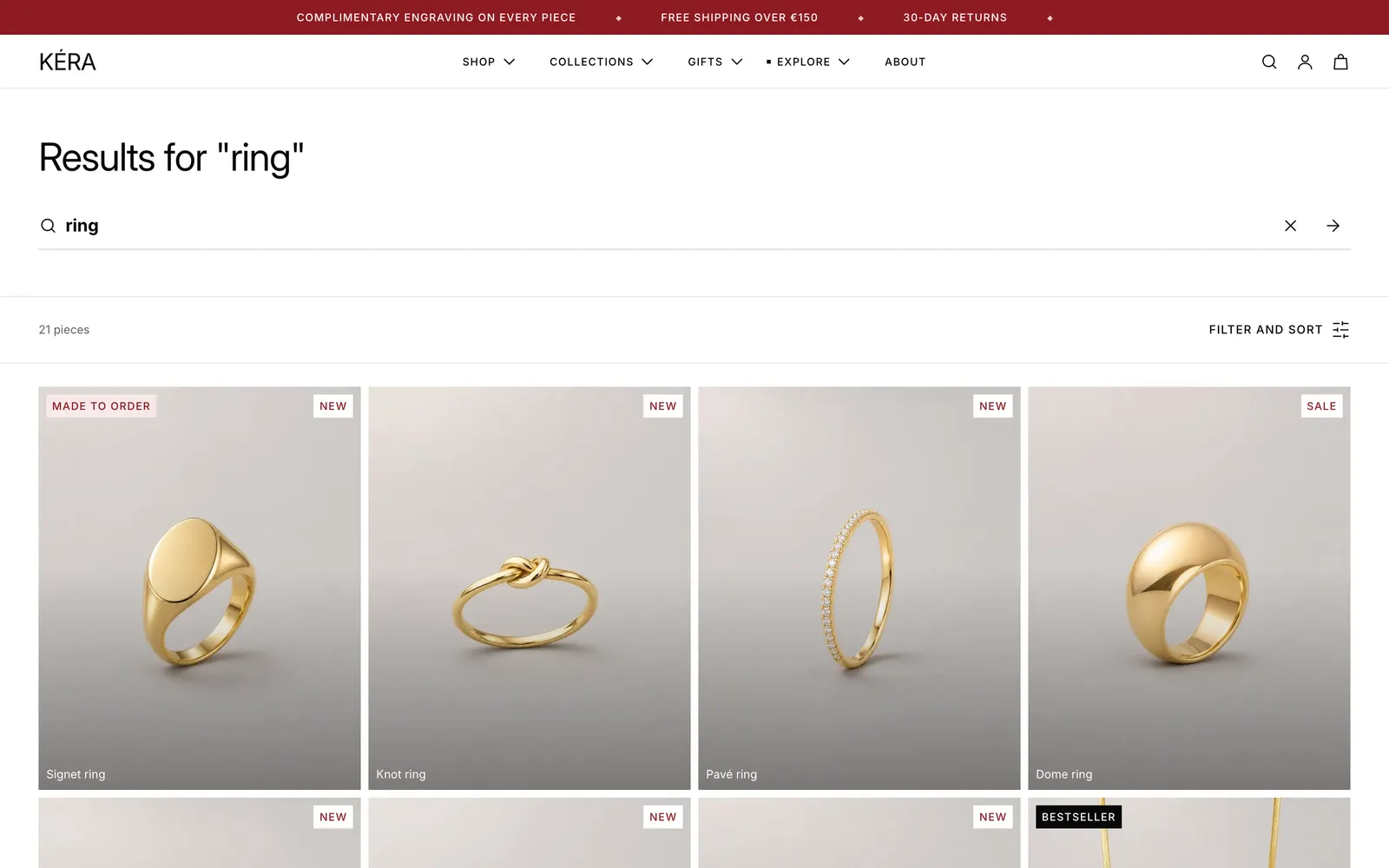
Kera has two places to search: the panel that opens from the header, and the search results page. Both suggest results as the shopper types and look through the same content.
Set it up#
- In Theme settings > Search, set Search results to what search looks through. Installs as All content.
- In Online Store > Navigation (opens Shopify admin in a new tab), make a menu of popular searches.
- Select Header > Header. Under Search, choose the Popular searches menu and a Popular products collection.
- In the page selector choose Search, select Search results, and set the same two.
Settings#
Theme settings > Search
| Setting | What it does |
|---|---|
| Search results | What the suggestions and the search page look through: All content (default: products, collections, pages and blog posts), Products only, Products and collections, Products, pages and articles, or Products and pages. |
| Hide the menu while searching | Desktop only. Turn it off to fade the menu and open search beside it. Installs on. |
| Use the header's colors | Installs on. The desktop search field keeps the header's colors either way. |
| Search color scheme | The panel's colors when it doesn't use the header's. |
Search results section settings
| Setting | What it does |
|---|---|
| Color scheme | Colors of the section. |
| Show filters | Installs on. |
| Show sorting | Installs on. |
| Popular searches menu | A menu shown before a search. |
| Popular searches heading | Default "Popular searches". |
| Popular products collection | Its first products show before a search. |
| Popular products heading | Default "Popular products". |
| Products shown | 2 to 8, default 4. |
| Top spacing | None, Small, Medium (default) or Large. |
| Bottom spacing | None, Small, Medium (default) or Large. |
The Header section has the same popular searches and products settings for the header's panel, under Search. Leave a menu or collection empty to hide that part.
Every setting: Search results reference.
Good to know#
How much space is around the search panel?
The same above and below the suggestions: 16px, matching the space the header leaves above and below the logo.
What do suggestions show?
A row of links (suggested terms, then matching collections, pages and articles; it scrolls sideways when too long), matching products as small cards, and a View all link. Each type shows up to 6 results. Arrow keys move through results, Escape clears the field, and Enter opens a result or searches.
How does the results page look?
The search field at the top, then results 24 per page with page numbers. Products show as product cards (Theme settings > Product cards); pages and articles show as cards in the same style, labeled with their type. Filters and sorting come from the Search & Discovery app, as on Collection page and filters. If filters leave no results, they stay so the shopper can take them off.
The suggestions show collections, but the results page doesn't.
That's expected: Shopify's search results page lists products, pages and articles only. With Products and collections, the page lists products only.
A product doesn't show in search.
Check that it's active and available on the Online Store sales channel. Shopify hides products whose seo.hidden metafield is set to 1.
How do I add synonyms or boost products?
Use the Search & Discovery app. The theme shows the results Shopify returns.