

Footer
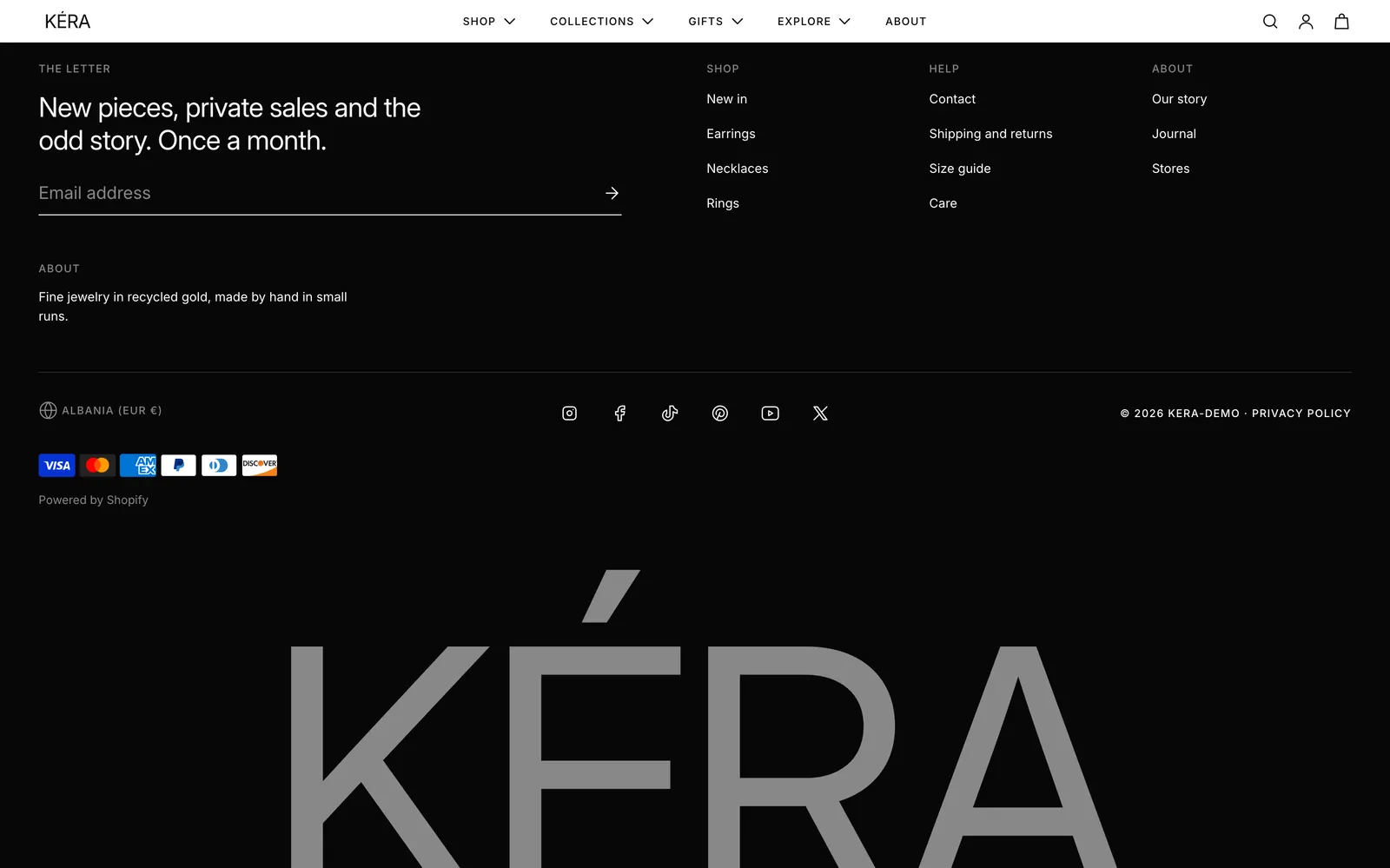
Set up Kera's footer with newsletter, menu and text columns, selectors, social and payment icons, policy links and the large wordmark.
Up to 6 columns (newsletter sign-up, menus and text), a bottom row with selectors, social, policy and payment icons, and an optional large wordmark of your store name.
Set it up#
- Open Footer and select each installed block (Newsletter, Menu, Text) to change its Heading and content.
- Set each block's Width on desktop. Blocks wrap to a new row when the row is full.
- To add a column, click Add block and choose Newsletter, Menu or Text. Drag blocks to reorder.
- Select Footer and turn off any bottom-row parts you don't want.
- Review the Icons with text section above the footer: it installs with three sample promises.
Settings#
Footer
All install on.
| Setting | What it does |
|---|---|
| Color scheme | The footer's colors. Installs as Scheme 3. |
| Show country selector | Only when the store sells in more than one country. Add markets in Settings > Markets (opens Shopify admin in a new tab). |
| Show language selector | Only with more than one language. Add languages in Settings > Languages (opens Shopify admin in a new tab). |
| Show social media icons | One icon per link filled in under Theme settings > Social media. |
| Show payment icons | The payment methods turned on for your store. |
| Show policy links | Links to each policy with content in Settings > Policies (opens Shopify admin in a new tab). |
| Show Follow on Shop | The Follow on Shop button, when Shopify offers it for your store. |
| Show large wordmark | The store name in large letters across the bottom. |
| Wordmark text | Replaces the store name in the wordmark. |
| Reveal wordmark on scroll | The wordmark rises into view at the bottom of the page. Visitors with reduced motion see it in place. |
Blocks
| Setting | What it does |
|---|---|
| Heading | The small heading at the top of the block. |
| Text | In Newsletter: the line above the email field. In Text: the block's text, with formatting. |
| Menu | In Menu: the menu to list. Installs as Footer menu. |
| Width on desktop | 1/6, 1/4, 1/3, 1/2, 2/3, 3/4 or Full width. |
Good to know#
Who does the Newsletter block sign up?
Visitors become customers tagged newsletter. For a newsletter band or popup elsewhere, see Newsletter, popup and reviews.
What is Icons with text?
A section in the Footer group, above the footer, with short promises such as delivery or returns on every page. Up to 6 items. Replace the three sample items or remove the section.
Does the password page use this footer?
No. It has its own Footer in the Password page footer group. Edit it from the password template.