

Journal and articles
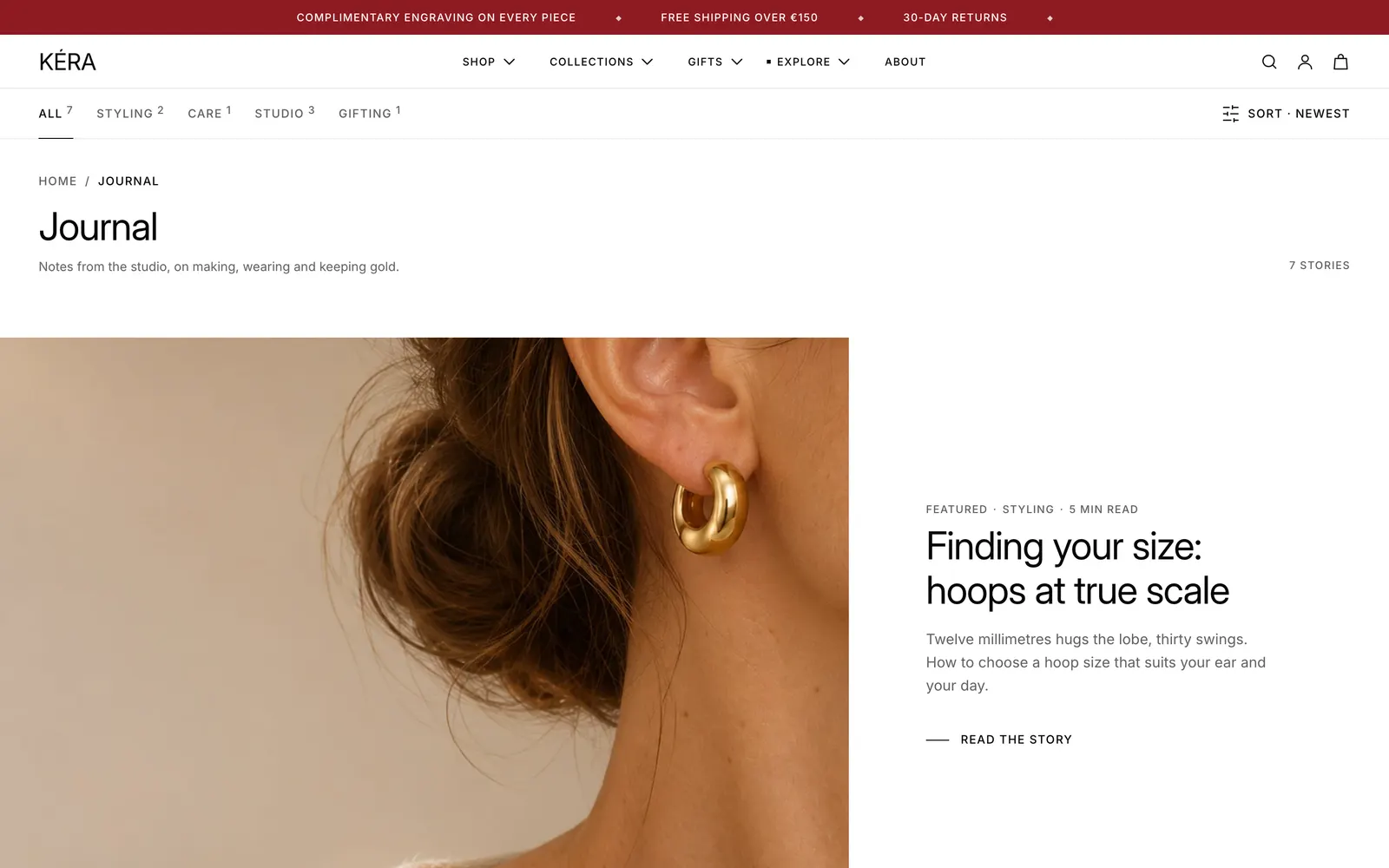
Set up your blog page and article pages, with type tabs, reading time and products shown under each story.
Your blog shows as a journal: article cards with type tabs, and article pages with the products each story mentions.
Set it up#
- Write articles in Online Store > Blog posts (opens Shopify admin in a new tab). Tag each with its type, such as "Care".
- In Blogs > Default blog, select Blog and replace the example Types with your tags, separated by commas. Empty uses every tag.
- In Blog posts > Default blog post, pick your blog in the Blog posts section's Blog setting.
- To show pieces under a story, pick Products in the Shop the story block, or leave it empty and fill the article's
custom.productsmetafield.
Do it with Sidekick
Open Sidekick in the theme editor and paste this, with your own names. Check the preview, then click Save.
On the blog template, set the Blog section's Types to Care, Styling and Stories, and turn on Feature the newest post.
Settings#
Blog section settings
| Setting | What it does |
|---|---|
| Text | A line under the title. |
| Posts per page | 4 to 24, default 12. |
| Show story count | Story count next to the title. Installs on. |
| Feature the newest post | A large card for the newest story on page 1. Installs on. |
| Show type tabs | Installs on. |
| Types | Article tags to show as tabs, separated by commas. Empty uses all. |
| Show counts on the tabs | Installs on. |
| Show sort | Newest / Oldest control. Installs on. |
| Keep the tabs and sort in view | Installs on. |
| Show type | On each card. Installs on. |
| Show reading time | On each card. Installs on. |
| Show date | On each card. Installs off. |
| Show excerpt | On each card. Installs on. |
| Card button label | Default "Read the story". Leave blank to hide the button. |
Blog post section settings
| Setting | What it does |
|---|---|
| Layout | Split (default) keeps the image on the left while the story scrolls, from 990px wide. Stacked puts it above. |
| Side padding on desktop | 16 to 80 px, default 40. Split layout only. |
| Show reading progress | A line under the header that fills as the story is read. Installs on. |
Blocks in the Blog post section
Title (blog and type links, type, reading time, date, author, title, excerpt), Featured image (can carry the title and excerpt), Content, Shop the story, Share (with Show tags, the tags) and Tags (tags as links to the filtered blog). Reorder or remove any of them.
Good to know#
Why are my type tabs empty or wrong?
Tabs come from Types, which ships with four example types. Use your own tags, or clear it to use every tag. See Product and article tags.
Why don't the tab counts or featured post show?
Counts come from the newest 50 posts, and are hidden on a type's page and on blogs with more than 50 posts. The featured post shows only on page 1 of the whole blog, not on a type's page or the Oldest sort.
How is reading time worked out?
From the article's integer metafield custom.reading_time when set. Otherwise words in the body divided by 200, minimum 1 minute. See Metafields the theme reads.
How does Shop the story choose its products?
Up to 4. Products picked in the block apply to every article on the template. With none picked, it reads each article's custom.products metafield (list of products). With neither, it shows nothing.
My title shows twice. Why?
The Featured image block puts the title on the photo. Turn off Show title in the Title block.