

Variant picker and size help
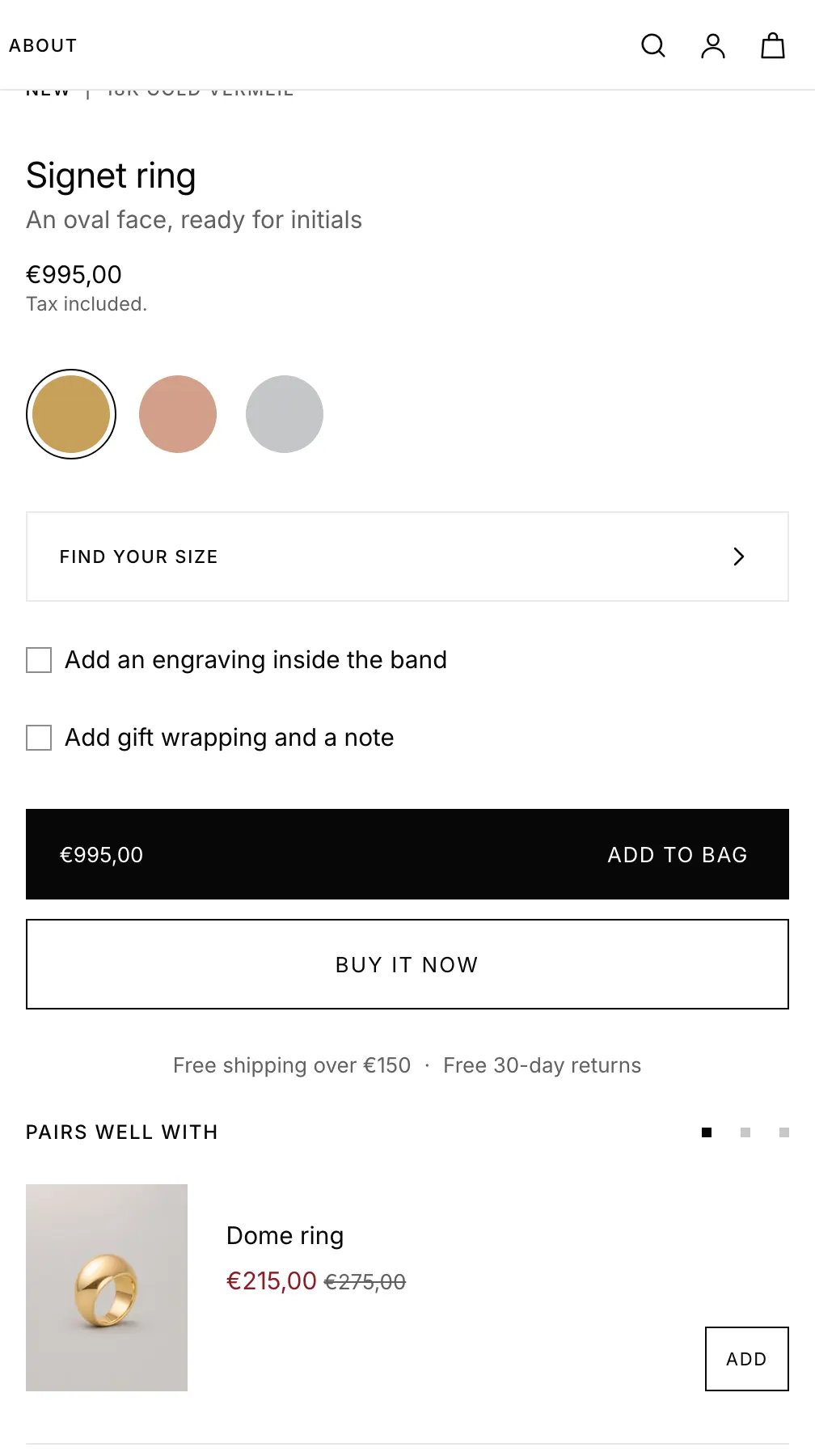
Choose how product options show, add a size guide link and size notes, or move the size option into a side drawer that guides the choice.
The Variant picker block shows options such as Metal and Size, and updates the price, photo and Add to bag button on each pick. Add size help as a size guide link, a note beside each size, or a drawer for one option.
Set it up#
- Select the Variant picker block and pick a Style and Option size.
- In Options with size help, type the option names exactly as on your products. Separate several with commas.
- Set the Size guide link text. It opens your size guide page in a side drawer; see Size guides.
- Optional: to move an option into a drawer, type it in Option name and set the Row label, such as "Find your size".
Settings#
Style settings
Style: how the options look. Installs as Squares. Swatch styles apply to options with swatches, such as Metal; others, such as Size, stay buttons.
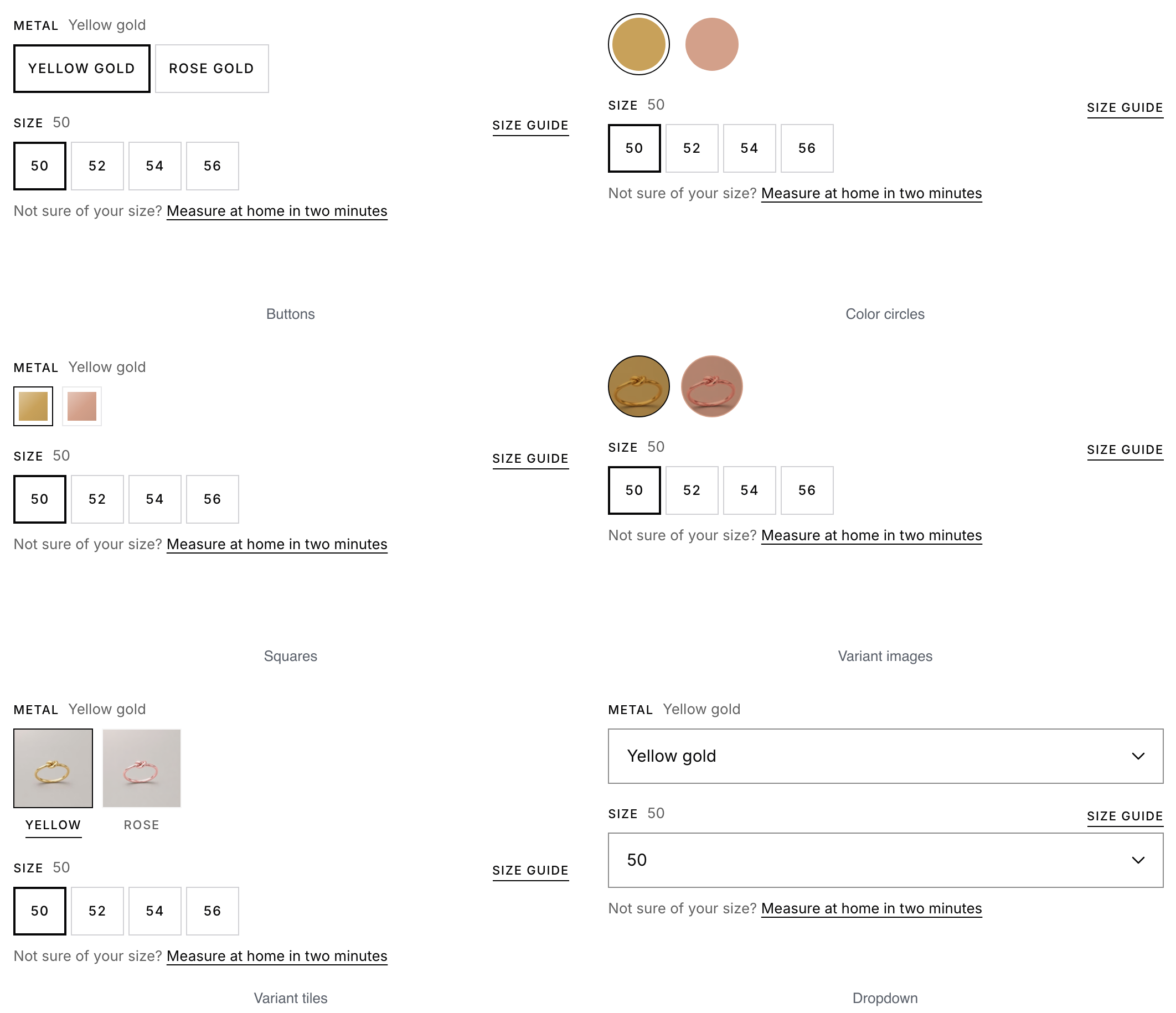
| Setting | What it does |
|---|---|
| Option size | Small, Medium or Large. Not shown for Dropdown. Installs as Medium. |
Size help settings
| Setting | What it does |
|---|---|
| Options with size help | Options that get the link, notes and help line. Installs as Size. |
| Size guide link | Installs as "Size guide". Shows only when a size guide page with content is found. |
| Line under the sizes | A short line under the values. Can include a link. |
| Size guide page for this block | Fallback page. Empty uses Theme settings > Drawers and overlays > Size guide page. |
Drawer settings
| Setting | What it does |
|---|---|
| Option name | The option that moves into a drawer. Several names allowed; the first one the product has is used. Empty shows all options inline. |
| Row label | The row that opens the drawer. Installs as "Find your size". |
| Help link in the drawer | Opens the size guide page inside the drawer. |
| Text under sizes | Shown under the values. [price] shows the chosen variant's price. |
| Photos heading | Heading over the photos per size. Installs as "Shown worn". |
Good to know#
Where do swatch colors and photos come from?
From each value's swatch in the Shopify admin (Products > your product > the option). A value without one still shows a color when its name is a known metal; otherwise Color circles and Squares show buttons. Variant images and Variant tiles show photos only for an option whose values lead to at least two different variant images, so give each variant its own image. Sold-out values stay visible, marked Sold out.
How does the size drawer behave?
It opens from the row; on phones it's a bottom sheet. Until a value is picked, Add to bag opens the drawer, and the value picked there goes straight into the bag. The drawer lists each value with its note, a necklace length drawing when all values are 40, 45 or 50 cm, a photo per size when sizes have different variant images, and the size guide page's first numbered list as steps.