

Set up the gift finder
Add the Gift finder section, write its questions and answers, and tag products so shoppers get the pieces that fit their answers.
The gift finder asks a few questions, one at a time, then shows the products that fit the answers best. Answers match products by product tag or by price, and the first result is marked "Best match".
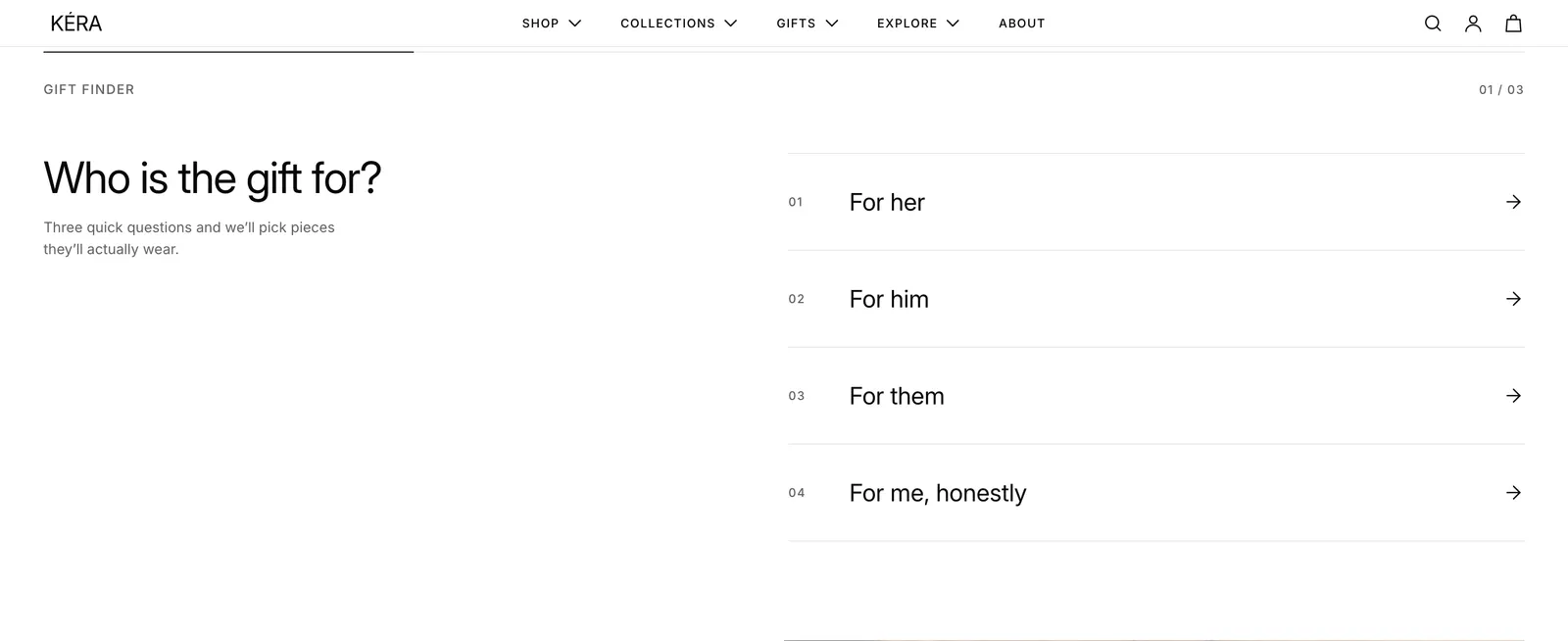
Set it up#
- Tag your products to match the answers (Products > the product > Tags). The installed answers use
earrings,necklaces,rings,chains,bracelets,charms,pendants,studs,huggies,hoops,pearlsandengravable. - Add the Gift finder section. It comes with three questions: who it's for, their style and the budget.
- In Products from, choose the collection to pick from. Empty uses all products.
- In each Question block (up to 5), add Answer blocks with Product tags, or Budget answer blocks with a Minimum price and Maximum price.
Do it with Sidekick
Tag products in the Shopify admin first, then build the questions in the theme editor. Paste each in Sidekick there, with your own names.
Add the tag for-her to every product in the Earrings and Necklaces collections.
In the Gift finder section, add a Question block "What do they wear most?" with three Answer blocks: Rings (product tags: rings), Earrings (product tags: earrings) and Necklaces (product tags: necklaces).
Settings#
Section settings
| Setting | What it does |
|---|---|
| Color scheme | Colors of the section. Default scheme 1. |
| Eyebrow | Small text above the steps. Default "Gift finder". |
| Products from | The collection to match. Empty uses all products. |
| Number of results | How many products show. 2 to 4, default 3. |
| Result heading | The heading over the results. An answer to the first question can set its own. |
| Show note | Shows a note with the results. Installs on. |
| Note | The note's text, for example about gift wrapping. |
| Top spacing | None, Small, Medium (default) or Large. |
| Bottom spacing | None, Small, Medium (default) or Large. |
Question block settings
| Setting | What it does |
|---|---|
| Question | The question's heading. |
| Text | A line of text under the question. |
Answer block settings
| Setting | What it does |
|---|---|
| Label | The answer's text, for example "For her". |
| Product tags | Comma-separated tags. Products with any of them match. Empty matches every product. |
| Result heading | Replaces the result heading when this answer is chosen on the first question, for example "Gifts she'll keep". If several chosen answers have one, the earliest question's wins. |
Budget answer block settings
| Setting | What it does |
|---|---|
| Label | The answer's text. Empty names it from the prices, for example "Under €75", "€75 – €150" or "€150 and up". |
| Minimum price | Lowest price, included. In store currency. Empty for no minimum. |
| Maximum price | Highest price, not included. In store currency. Empty for no maximum. |
Every setting: Gift finder reference.
Good to know#
How are tags matched?
In handle form: "For her" matches for-her or For her. A product matches if it has any of the answer's tags.
How does a budget answer match?
A product matches when its lowest price is at least the minimum and below the maximum. Shoppers paying in another currency see prices converted, and the budget is converted with them.
How are results ranked?
A budget answer filters first (ignored if nothing fits). Tag answers then score products, earlier questions weighing more, so fitting the first question always ranks higher. Ties keep collection order. Sold-out and hidden products are skipped.
Why do the results ignore an answer?
When no product fits every answer, the later questions give way first so the finder can still show something. Tag more products so each answer has matches.
Why is a product missing from the results?
Check it's in the first 50 of Products from, in stock, tagged to match, and not hidden from search. To keep items like gift wrapping out, hide them with seo.hidden: see Metafields.