

Contact page and store locator
Build a contact page with ways to reach you, a contact form that emails you, a short FAQ and a map of your stores.
The contact template has four sections: Contact header, Contact form, FAQ and Store locator. Remove, reorder or reuse them on any page. For the FAQ section, see FAQ page.
Set it up#
- In Online Store > Pages (opens Shopify admin in a new tab), open or add the page and set Theme template to contact.
- In Contact header, fill in Label, Value and Note on each Contact card (up to 3).
- In Contact form, edit Topics (one per line) and Note beside button, and turn the order number and phone fields on or off.
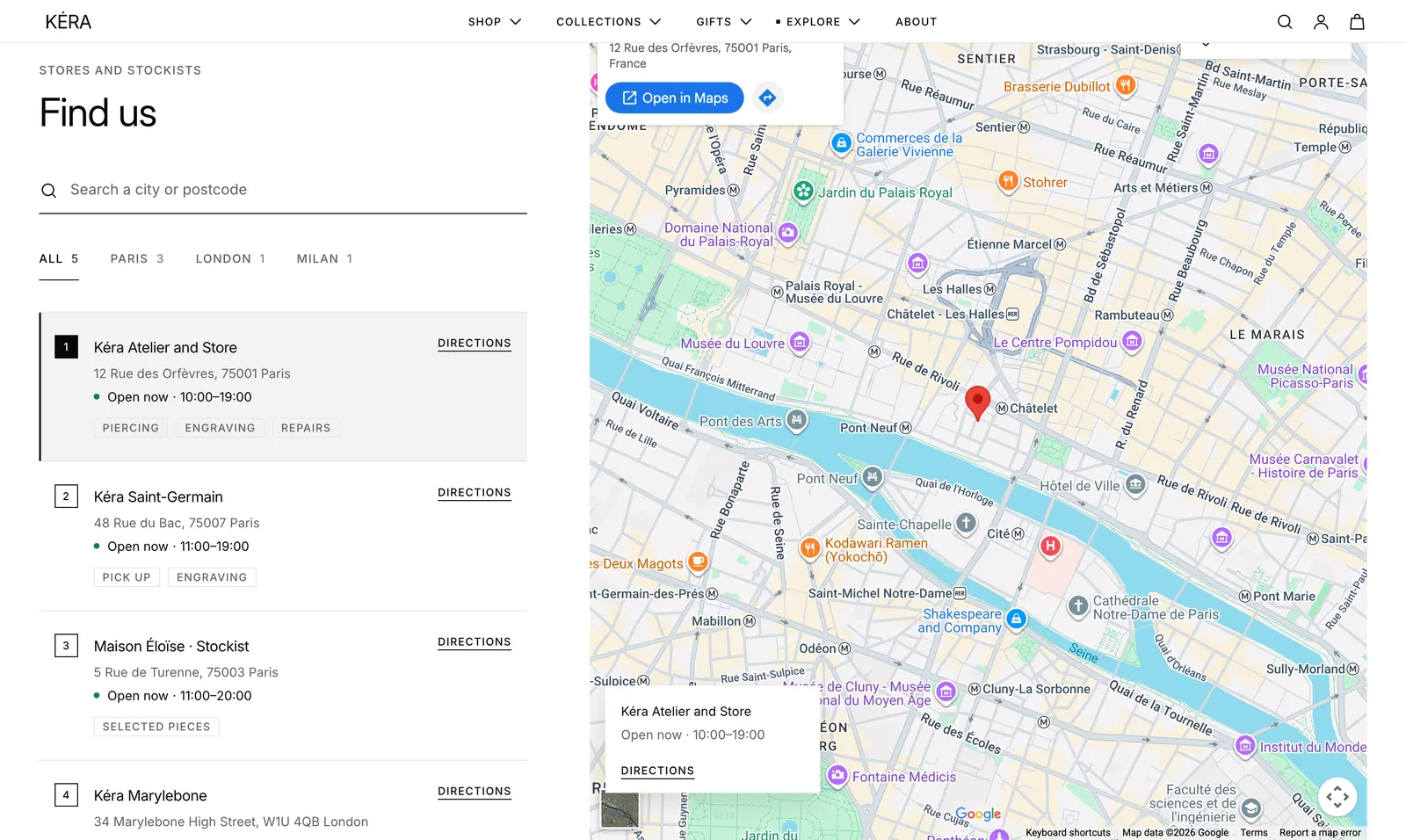
- In Store locator, add a Store block per store with Store name, Street address, Postcode, City and Opening hours, such as
10:00–19:00.
Settings#
Contact form settings
| Setting | What it does |
|---|---|
| Sticky side column | The side column stays in view while the form scrolls. Installs on. |
| Form heading | Default "Write to us". |
| Show topic field | A topic list. Installs on. |
| Topics | One per line. Empty hides the list. |
| Show order number field | Installs on. |
| Order number hint | A line under the field, such as where to find the number. |
| Show phone field | Installs off. |
| Button label | Default "Send message". |
| Note beside button | Rich text next to the button, such as reply times and a privacy link. |
Store locator settings
| Setting | What it does |
|---|---|
| Show search | A search field over the list. Installs on. |
| Show city tabs | Tabs per city when stores are in more than one city. Installs on. |
| Map zoom | 3 to 20, default 15. Doesn't apply to a pasted map embed link. |
| Map height on desktop | Match the list, Medium, Large (default) or Screen height. With a fixed height, a long list scrolls next to the map. |
| Label after the name | For example "Stockist". |
| Image | Shown in the card over the map on desktop. |
| Services | Separated by commas, for example "Piercing, Engraving". |
| Phone | Shown on the store card. |
Good to know#
Where do the contact cards link?
An email address in Value links to it; a phone number opens a call. To link elsewhere, such as a chat app, fill in Link. Leave Heading empty to use the page title. Breadcrumbs need Show breadcrumbs on in the section and in Theme settings > Layout.
What does the form send?
Name, email and message always. The topic and order number arrive under the labels in Topic label and Order number label. The side column takes Side heading, Answer link, Detail row (label and value) and Note blocks.
The open or closed label doesn't show.
Turn on Show open or closed now. The theme reads the first time range in Opening hours, such as 10:00–19:00 or 9am–6pm; other text shows no label. Set Time zone (for example America/New_York) if the store isn't in your shop's time zone.
How does "Use my location" work?
Add Latitude and Longitude to stores. The button shows when at least one store has them, and sorts stores nearest first for shoppers who allow it.
How does the map work?
A Google Maps embed, no API key needed. It loads only as it nears the screen. The address places each store and builds its directions link. For a specific view, such as Street View, paste a Google Maps Share > Embed a map code or link in Map embed link.