

Build editorial collections
Turn a collection into an edit with a banner, chapters and guides above the grid, and list your edits on one page.
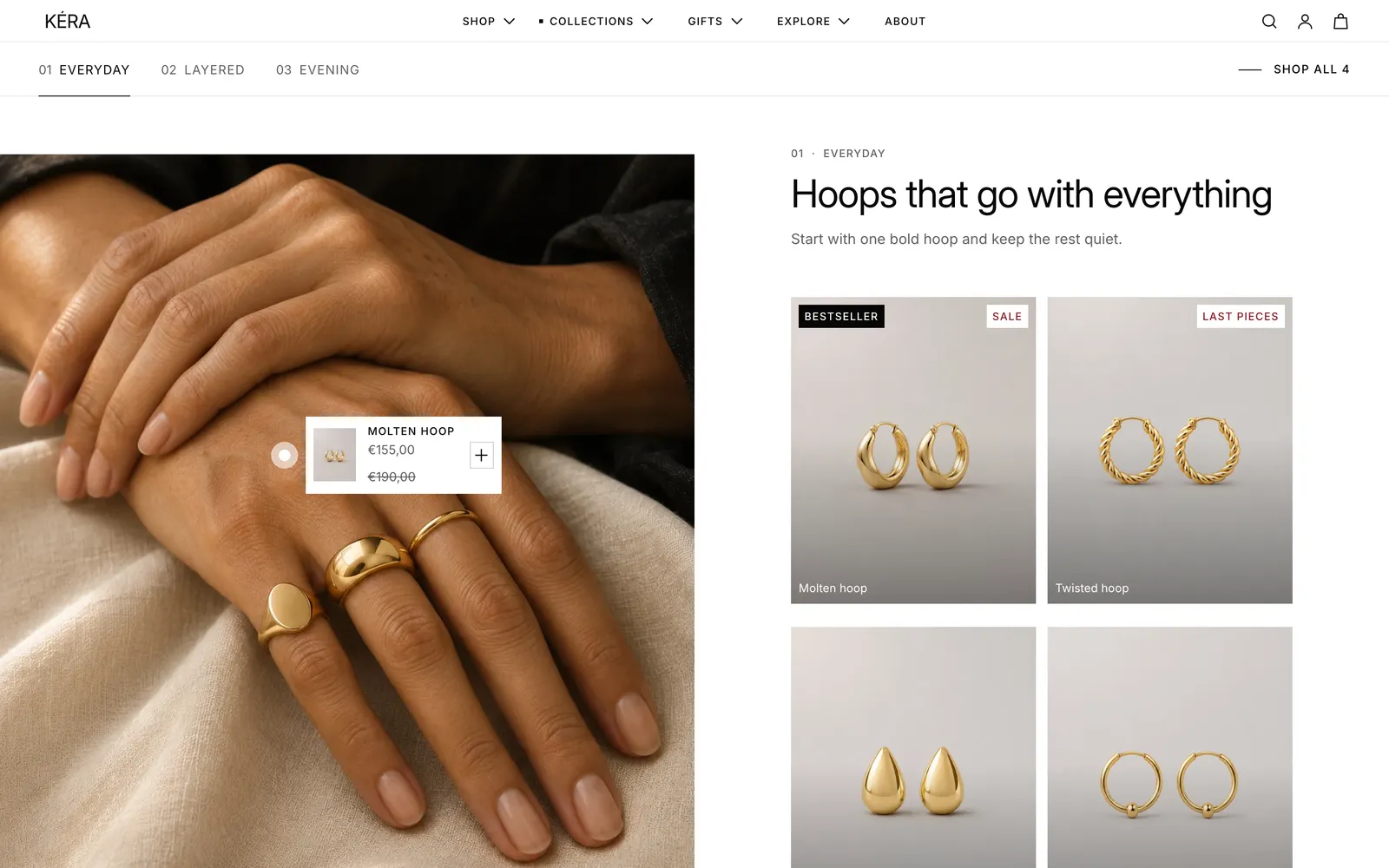
An editorial collection tells a story before the grid: a large banner, chapters that pair a photo with a few pieces, short styling guides, then every piece. Kera ships two such templates, edit and edit-alt, plus edits, a page that lists them.
Set it up#
- In Shopify admin, open the collection (Products > Collections (opens Shopify admin in a new tab)) and set Theme template to edit. Save.
- In the editor, choose Collections > edit from the page selector and preview it with your collection.
- In Collection banner, set the Image and Height.
- In Editorial chapters, fill each Chapter block (up to 6) with a Chapter name, Heading, Image and up to 4 Products.
- Replace the example images, products and text in Guides and Rich text.
Do it with Sidekick
Open Sidekick in the Shopify admin and paste this, with your own names and numbers. Check what it fills in before you save.
Set the theme template of the "Golden hour" collection to "edit".
Settings#
Collection banner
| Setting | What it does |
|---|---|
| Image | Empty uses the collection's image. Mobile image is for phones. |
| Height | Small, Medium (default), Large or Full screen. |
| Fade behind text | Keeps text readable, with Text color. |
| Heading | Empty uses the collection title. |
| Text | Replaces the collection description. |
| Show product count in eyebrow | Adds the count to the eyebrow. Show lowest price in eyebrow adds the price. |
| Collections | Links to other collections under the banner. |
Editorial chapters
| Setting | What it does |
|---|---|
| Chapter name | Shows on the tab and above the heading. |
| Product | Under Pinned product: a piece pinned on the photo. Tapping its dot shows it; its + opens quick view. |
| Show card open | Shows the pinned card from the start. |
| First image | The first photo's side; then they alternate. |
| Shop all link | Where the bar's Shop all goes. Empty jumps to the grid below. |
Guides
| Setting | What it does |
|---|---|
| Picture | An Image or the Necklace length diagram. Up to 4 Guide blocks. |
| Heading | The guide's title. |
| Link | Where the guide links, with Link label. |
The grid below is the regular Collection section with Heading set to Shop the edit: see Collection page and filters.
Editorial list section settings
| Setting | What it does |
|---|---|
| Heading | Uses the page title when empty. |
| Text | Uses the page content when empty. |
| Show number of editorials | Installs on. |
| Eyebrow | The Coming next band's eyebrow. |
| Link label | The Coming next band's link text. |
| Link | Where the Coming next band links. |
Editorial block settings
| Setting | What it does |
|---|---|
| Collection | The edit. Its pieces, count and lowest price show under the photo. |
| Show large | Full width, with four pieces named under it. |
| Eyebrow | Small text above the heading. Default "The edit". |
| Heading | Uses the collection title when empty. |
| Image | Uses the collection's image when empty. |
| Link | Uses the collection's page when empty. |
| Note under the photo | Replaces the number of pieces and price. |
Every setting: Collection banner reference, Editorial chapters reference, Guides reference, Editorial list reference.
Good to know#
How do I list all my edits on one page?
Create a page in Online Store > Pages (opens Shopify admin in a new tab) with Theme template set to edits. In the page selector, choose Pages > edits, then select Editorial list and add an Editorial block per edit with its Collection. Clear the Coming next band's Heading to hide it.
Can I add chapters to my regular collection template?
Yes. Editorial chapters and Guides can be added to any template. The Collection banner works on any collection template, above the grid.
Why doesn't the Shop all link show a count?
Add the product count to the label adds the count only on a collection page, where there is a collection to count.