

Sticky Add to bag
Show a copy of the Add to bag button at the bottom of the screen once shoppers scroll past the real one, on phones or on every screen.
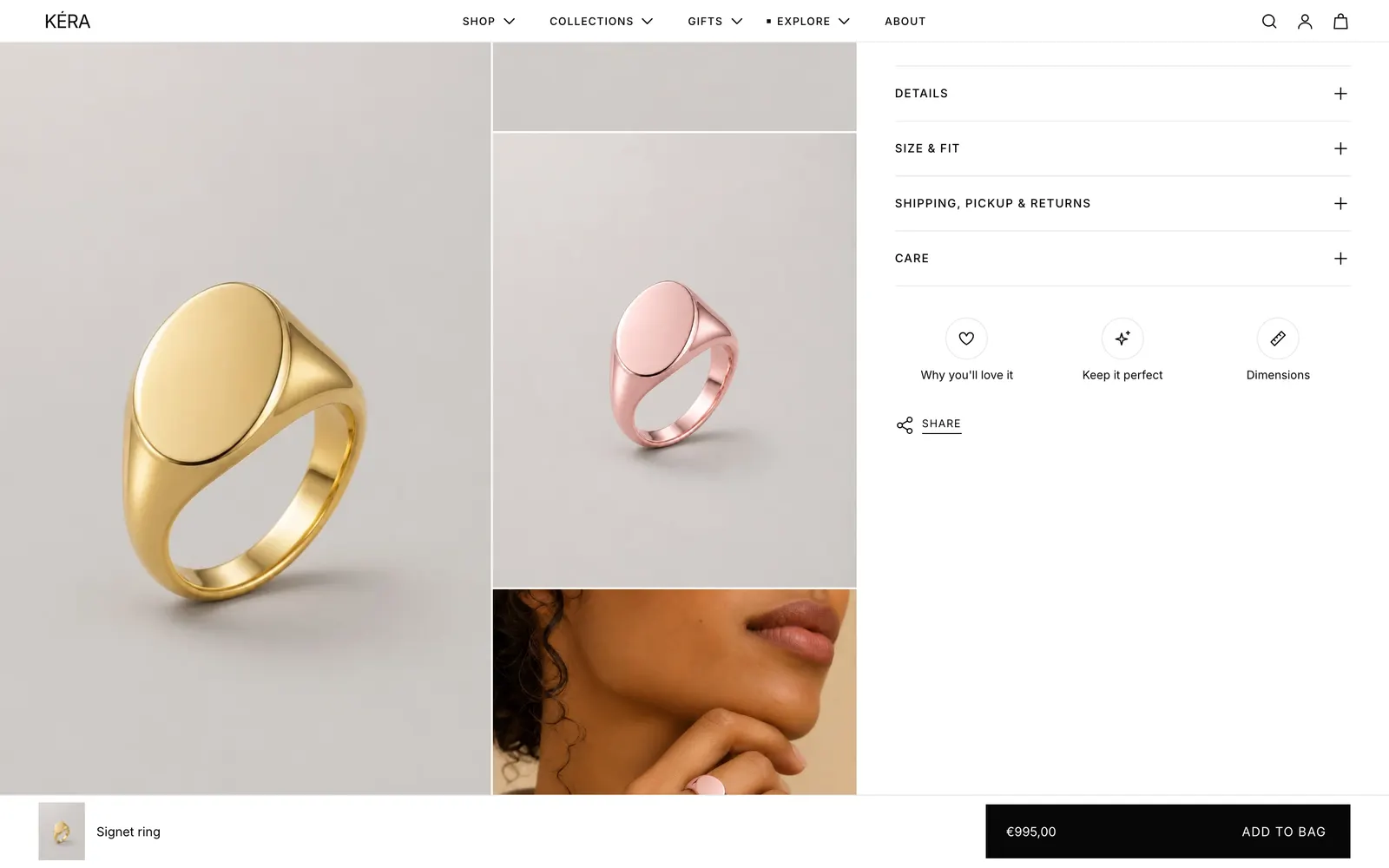
Once the shopper scrolls past Add to bag, a copy slides up at the bottom of the screen. It works exactly like the real button: same variant, label, price and Sold out state.
Set it up#
- Select the Sticky add to bag section. The default product template has it after Product information; on other product templates, add it with Add section.
- Choose Show on: Phones (a full-width button) or Phones and desktop (adds a bar with the title on larger screens).
- Optional: set Show after scrolling and a Color scheme.
To turn it off, hide or remove the section.
Settings#
Section settings
| Setting | What it does |
|---|---|
| Show on | Phones or Phones and desktop. Installs as Phones and desktop. |
| Show product image | The image in the desktop bar. Phones and desktop only. Installs on. |
| Show after scrolling | 0 to 90%, default 0. How far past Add to bag, as a share of the page, before it shows. |
| Color scheme | Colors of the bar. |
Good to know#
When does it hide?
While the footer is on screen, while a drawer such as the cart or size guide is open, and always when the product is sold out. It lays over the page, so nothing moves. In the editor, selecting the section shows the bar without scrolling.
The sticky button doesn't show
Check for a Buy buttons block in Product information, that the product isn't sold out, and that you scrolled past the real button. With Show on set to Phones, it doesn't show on desktop.
What if the shopper hasn't picked a size?
The same checks run as on the real button. An unpicked size in a size drawer opens the drawer; an empty required engraving opens its field or drawer. See Variant picker and size help and Engraving and add-ons.